
How to Remove Audio from a Video Online
Remove audio from video online: mute a clip, silence a bad take, or swap in licensed music before Instagram and TikTok re-compress your upload.
Copyright strikes, room echo, wind on the mic, or a music track you cannot ship — there are plenty of reasons to remove audio from video before upload. The fix is not mysterious: either mute the original track or replace it with audio you control.
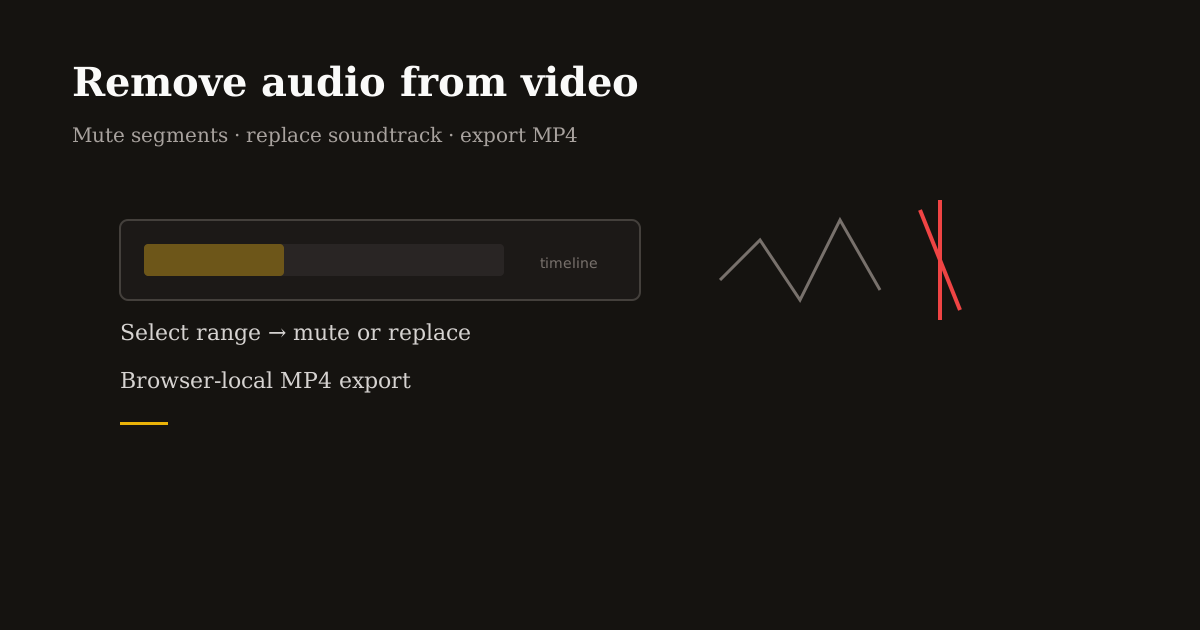
Reels Editor’s Audio tool runs in the browser. You pick the segment on a timeline, mute or drop in an MP3, preview, and export MP4 without sending the project to a cloud queue.
When removing audio is the right move
Licensed music in the camera roll: you filmed with a trending song playing in the room and Instagram flags it. Strip the track, upload clean video, add platform music in-app.
Voiceover replacement: the take is good visually but the audio has traffic noise. Mute the segment and record VO elsewhere, or lay an MP3 bed under the clip.
B-roll for templated edits: silent cutaways are easier to sync in CapCut or Instagram when the original mic was useless anyway.
Interview safety: remove identifiable audio from a clip you plan to subtitle later with rewritten on-screen text.
Mute vs replace: pick one before you export
Mute keeps a silent audio track or empty segment — ideal when you will add music inside TikTok or Reels after upload. The visual timing stays identical to your source.
Replace swaps your chosen range with an MP3 file you supply — useful for podcast clips, brand sonic logos, or stock beds you already licensed.
Do not stack both by accident: if you replace with MP3, preview levels so your new audio is not clipping. Mobile speakers distort easily on hot masters.
Remove audio from video online — browser workflow
Open Add Audio to Video and upload your MP4 or MOV. Scrub the timeline and drag handles to set the start and end of the segment you want to change.
To remove audio from that range only, leave the MP3 field empty and export — the selected span exports muted while the rest of the video can keep its original sound (when your range covers the full clip, the result is fully silent).
To replace audio, upload your MP3 and align the segment so the music hits the visual beat you care about. Preview before export; small nudges on the timeline beat guessing after upload.
Download MP4 locally, then upload to Instagram, TikTok, or Shorts. Add trending sounds in-app only if you want platform discovery — not because you had to fix copyright on the original track.
Keep quality and sync intact
Removing audio should not require re-shooting video. Reels Editor re-encodes once on export — avoid passing the same file through three different “mute video” websites or you will add compression artifacts unrelated to audio.
If lips must match new speech, mute and replace is not enough — you need a re-record or visual cutaways. For music-only swaps, cut on the downbeat in preview so the first frame of motion feels intentional.
Short-form platforms re-compress anyway. Export a clean MP4 at 1080×1920 when your source allows; mute audio at the source rather than lowering video bitrate to “save space” before stripping sound.
Frequently asked questions
- How do I remove audio from an entire video online?
- Upload the clip, set the timeline range to cover the full duration, leave MP3 empty, and export. The downloaded MP4 will have no audible track in that range.
- Can I remove audio from only part of a clip?
- Yes. Drag the segment handles to the span you want muted or replaced. The rest of the video keeps its original audio outside that range.
- Will muting reduce video quality?
- Export re-encodes video once. Quality loss comes from low bitrates or multiple re-exports — not from removing audio itself.
- Can I add Instagram music after muting?
- Yes. Many creators mute copyrighted room audio, upload clean video, then add licensed sounds inside the Instagram or TikTok app.