
How to Convert a Horizontal Video to Vertical 9:16
Convert horizontal video to vertical 9:16 without black bars: crop 16:9 to 9:16, reposition subjects, blur-fill backgrounds, and export for Reels, TikTok, and YouTube Shorts.
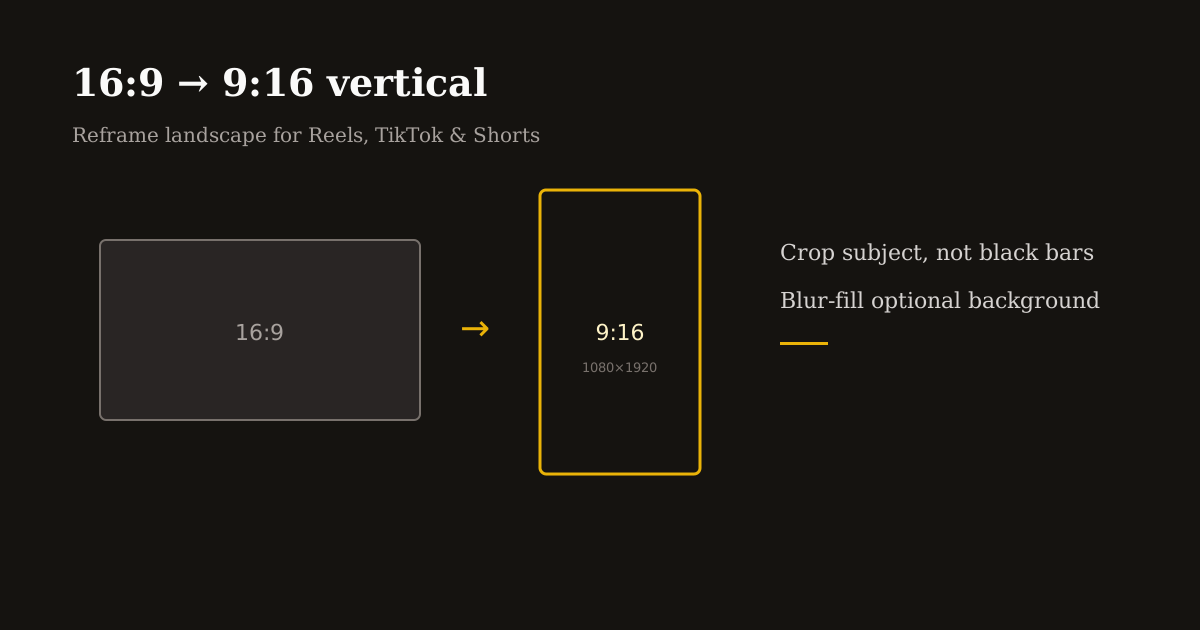
Landscape 16:9 is how cameras, Zoom, and screen recorders default — but Reels, TikTok, and Shorts are 9:16 full screen. Uploading horizontal video without reframing gives you tiny subjects, black bars, or aggressive platform crops you never approved.
Converting horizontal video to vertical is a composition problem first and a technical one second. This guide shows how to reframe with intent in the browser.
Quick size reference
| Platform | Format | Size | Ratio | Notes |
|---|---|---|---|---|
| Reels / TikTok / Shorts | Vertical master | 1080×1920 | 9:16 | Target export |
| Source (common) | Landscape HD | 1920×1080 | 16:9 | Typical input |
Crop — do not letterbox — for short-form feeds
Letterboxing 16:9 inside 9:16 preserves every pixel of width but shrinks your subject to a strip in the middle of the phone. Feeds reward full-screen faces and products, not cinema bars.
The fix is a deliberate vertical crop: choose which third of the landscape frame matters, then export 1080×1920 with that window.
If you need the entire width visible (wide demo screens), use blur-fill or a slide pan — but default to punch-in for talking heads and product shots.
How to reframe the subject when converting 16:9 to 9:16
Talking head: place eyes in the upper third of the vertical frame, not dead center. Leave chin room above bottom captions.
Product/demo: center the hero object, not the table edge. Screen recordings: zoom until UI text is legible on a phone — often 130–160% scale inside the crop.
Two-person landscape interviews: pick one speaker per clip or split into two vertical exports. Trying to keep both tiny faces hurts retention on every platform.
Convert horizontal video to vertical — browser workflow
Open Resize Video and upload your MP4. Set output to 1080×1920 (9:16) or choose the Reels preset if available.
Drag the crop window until the subject fills the frame. Use zoom/scale if the tool allows — landscape sources often need a tighter pick-up than the default center crop.
Optional blur-fill: when you must hint at context outside the crop, a blurred background extension looks cleaner than black bars for lifestyle B-roll.
Preview the first and last second — hooks and CTAs live at extremes. Export MP4 once, then trim dead air in Cuts if pacing still feels slow.
Instagram, TikTok, and Shorts after conversion
Instagram Reels: upload the 9:16 master; add captions in-app if you did not burn them. Keep logos upper-corner per safe-zone guides.
TikTok: right-edge UI is crowded — bias subject slightly left of center. Test one export before batching a series.
YouTube Shorts: titles still matter on the shelf; the vertical frame is the same 1080×1920 language — reuse the master when cross-posting.
Cross-post the same vertical file when messaging aligns. Re-cropping per platform only when UI safe zones differ materially.
Quality tips when upscaling feels necessary
Start from the highest source resolution available. Cropping 1080p landscape to 9:16 keeps more detail than cropping 720p.
Avoid exporting vertical at 540×960 for final brand campaigns — fine for drafts, soft for product detail.
Pair with Compress MP4 after reframing if uploads fail — not before — so you compress the final pixels viewers will see.
Frequently asked questions
- How do I turn a horizontal video vertical for Reels?
- Crop 16:9 to 9:16 at 1080×1920, reposition the subject in Resize Video, and export MP4. Avoid letterboxing for feed posts.
- What is 16:9 to 9:16 in pixels?
- A common vertical master is 1080×1920 (9:16). Landscape 1920×1080 (16:9) reframed vertically uses a tall window from that source.
- Will TikTok crop my horizontal video automatically?
- Platforms may center-crop if you upload landscape. Manual vertical crop gives you control over faces, text, and product framing.
- Can I convert horizontal to vertical online free?
- Yes. Reels Editor Resize Video reframes and exports in the browser without an account.