
Instagram Reel Dimensions
Instagram Reel dimensions are 1080×1920 (9:16). Compare Reels vs Stories vs 4:5 feed crops, caption safe zones, and export settings that stay sharp.
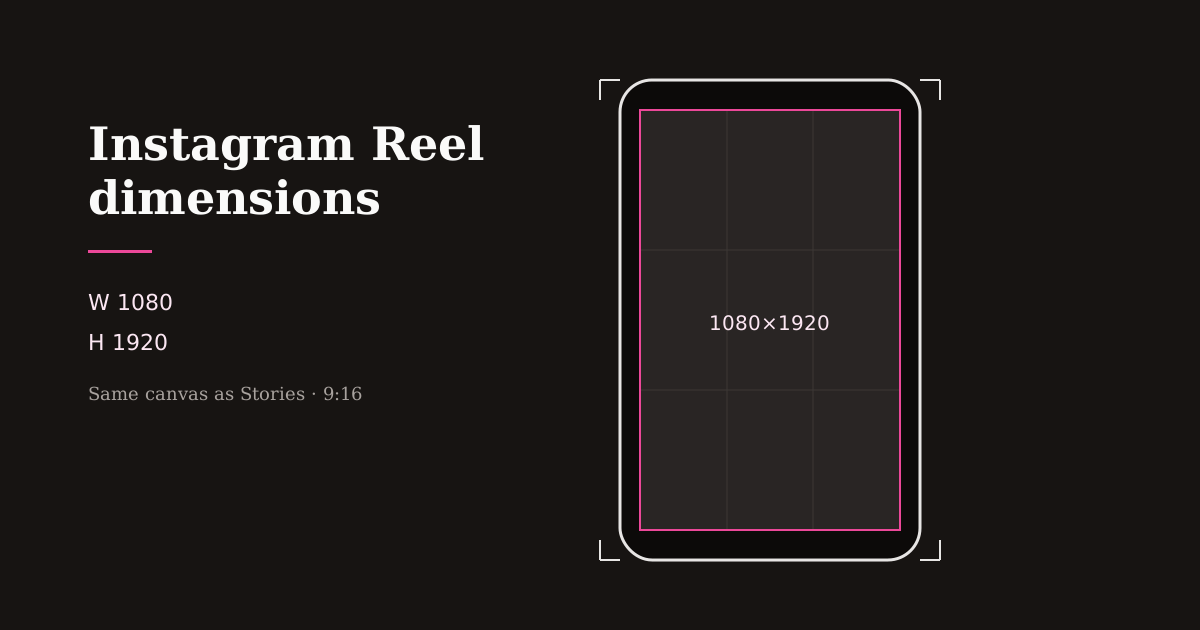
Instagram Reels share the Stories canvas: full-screen vertical video. Get the dimensions right once and your captions, stickers, and cover frames stop colliding with Instagram’s chrome.
Quick size reference
| Platform | Format | Size | Ratio | Notes |
|---|---|---|---|---|
| Reels | 1080×1920 | 9:16 | Full-screen playback | |
| Stories | 1080×1920 | 9:16 | Same pixel size as Reels | |
| Portrait feed post | 1080×1350 | 4:5 | Feed grid / non-Reel posts | |
| Square post | 1080×1080 | 1:1 | Feed only — not ideal for Reels |
Exact Instagram Reel dimensions
Use 1080×1920 pixels (9:16). That is the size Instagram expects for immersive Reels playback and the size most creator tools label as Reels & Stories.
Stories use the same dimensions, which is why a single vertical master can cover both surfaces. The creative difference is duration, stickers, and link stickers — not the canvas size.
Avoid uploading landscape masters and hoping Instagram “fixes” them. Center-crop automation does not know which product or face matters.
Reels vs feed: when 4:5 still matters
Reels play full-screen in 9:16. Classic portrait feed posts often look best at 4:5 (1080×1350) because that ratio occupies more feed real estate without forcing a full-screen swipe.
If a campaign needs both a Reel and a static or carousel feed asset, export two sizes from the same source: 9:16 for the Reel and 4:5 for the feed crop. Do not stretch one into the other.
Profile grids show cover frames — treat the opening second of your Reel like a thumbnail. Strong first frames outperform decorative end cards that never appear in the grid.
Caption and sticker safe areas on Instagram
Username, captions, and audio labels compete along the bottom of Reels. Stickers and interactive elements can also cover mid-lower areas in Stories.
Keep primary subjects centered with extra bottom padding. Place burned-in captions higher than the platform caption field so mute viewers can still read your message if Instagram’s caption overlaps.
Preview after adding text in Reels Editor or in Instagram’s draft tools. What looks fine on a desktop canvas often collides with mobile UI.
Export settings that stay sharp on Instagram
Export a clean MP4 at 1080×1920. Prefer a single high-quality encode over re-downloading a Reel from Instagram to repost elsewhere — each hop softens detail.
In Resize Video, lock the Reels preset, center the subject, then download. Add logos only after the crop is final so branding lands inside safe margins.
For series content, reuse the same dimensions and margin rules. Cohesive framing reads as a brand even before viewers recognize your face or product.
Frequently asked questions
- What are Instagram Reel dimensions?
- 1080×1920 pixels at a 9:16 aspect ratio.
- Are Instagram Stories the same size as Reels?
- Yes. Both use 1080×1920 (9:16). Creative tools differ; the canvas size matches.
- Should Reels be 4:5?
- No. Full-screen Reels should be 9:16. Use 4:5 for portrait feed posts when you need a non-Reel feed crop.