
Social Media Size Cheat Sheet
Copy-ready social media sizes for Instagram, TikTok, YouTube, Facebook, LinkedIn, X, and Pinterest — plus which ratio to use when you only have time for one export.
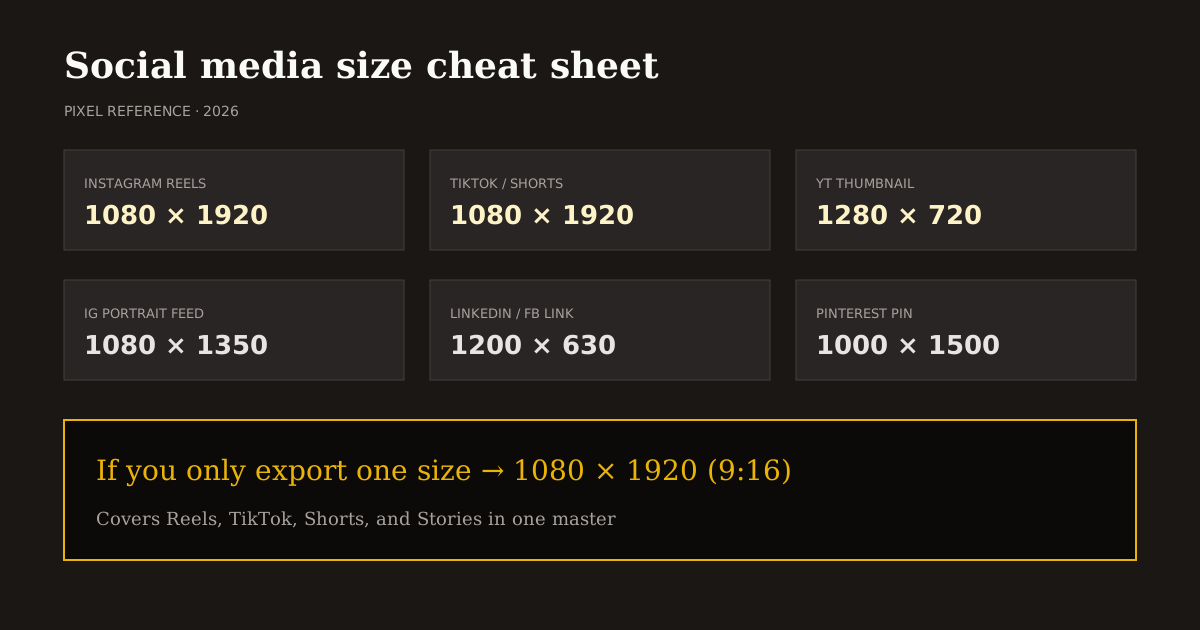
Bookmark this cheat sheet when you batch content. Same-day posts across platforms fail most often because of the wrong canvas — not because of weak hooks.
Quick size reference
| Platform | Format | Size | Ratio | Notes |
|---|---|---|---|---|
| Reels / Stories | 1080×1920 | 9:16 | — | |
| Portrait post | 1080×1350 | 4:5 | — | |
| Square post | 1080×1080 | 1:1 | — | |
| TikTok | Video | 1080×1920 | 9:16 | — |
| YouTube | Shorts | 1080×1920 | 9:16 | — |
| YouTube | Thumbnail | 1280×720 | 16:9 | — |
| Story / Reel-style | 1080×1920 | 9:16 | — | |
| Link / landscape post | 1200×630 | 1.91:1 | — | |
| Post image | 1200×627 | 1.91:1 | — | |
| Cover | 1584×396 | 4:1 | — | |
| X (Twitter) | Post image | 1600×900 | 16:9 | — |
| Standard pin | 1000×1500 | 2:3 | — |
If you only export one size
Make it 1080×1920 (9:16). That single master covers Instagram Reels, Stories, TikTok, YouTube Shorts, and Facebook Stories-style placements.
Add a second export only when the surface is clearly landscape: YouTube thumbnails (1280×720), link previews (~1.91:1), or X post images (16:9).
Still images for feed grids can use 4:5 on Instagram when you are not posting a Reel. Do not force every static post into 9:16 unless the creative is truly vertical.
How to use this cheat sheet in Reels Editor
Open Resize Video or Resize Image, pick the platform preset that matches the row above, then drag the subject into safe margins. Download MP4 or PNG locally.
For campaigns with many sizes, start from the highest-resolution source and crop down. Never upscale a small social download into a LinkedIn cover and expect clarity.
Pair this sheet with the safe-area guide when the asset is vertical video. Pixel size gets you accepted; safe margins get you readable.
Will these sizes change?
Platforms tweak UI often; they change native canvas sizes less often. 9:16 for short-form and 16:9 for YouTube thumbnails have been stable creative standards.
When a platform ships a new surface, update the row — do not abandon the master hierarchy. Vertical short-form still wants 1080×1920 first.
Reels Editor presets mirror this cheat sheet so your editor UI and this article stay aligned.
Frequently asked questions
- What is the most important social media video size?
- 1080×1920 (9:16) for Reels, TikTok, and Shorts.
- What size is a YouTube thumbnail?
- 1280×720 (16:9).
- Where can I resize to these dimensions?
- Use Reels Editor Resize Video or Resize Image presets — processing stays in your browser.