Reels Editor — strumenti gratis di foto e videoReels Editor
  • Strumenti
    Immagine
    • Sfoca immagine
    • Ridimensiona immagine
    • Rimuovi sfondo
    • Ritaglia immagine
    • Pixelizza immagine
    Video
    • Modifica Reels online
    • Ridimensiona video
    • Taglia video
    • Filtri video
    • Transizioni
    • Editor logo
    • Aggiungi immagine al Reel
    • Accelera video
    • Compressore MP4
    • Aggiungi audio
    Convertitori
    Video in GIF
    • MP4 in GIF
    • Video in GIF
    • MOV in GIF
    • WebM in GIF
    Formati immagine
    • PNG in JPG
    • JPG in PNG
    • PNG in WebP
    • WebP in PNG
    • JPG in WebP
    • WebP in JPG
    • HEIC in JPG
    • HEIC in PNG
    Tutti i convertitori
    Vedi tutti gli strumenti →
  • Guide
    Guide definitive
    • Creare un Reel virale🔥 In evidenza
    • Modificare immagini per un blog
    • Modificare Reels online
    • Dimensioni Reels Instagram
    • Montaggio video TikTok
    • YouTube Shorts
    • Branding Reels
    Vedi tutte le guide →
  • Modifica Reels online
  • Blog
  • Ridimensiona video
Reels EditorStrumenti gratis di foto e video
Principale
Tutti gli strumentiModifica Reels online
Immagine
Sfoca immagineRidimensiona immagineRimuovi sfondoRitaglia immaginePixelizza immagine
Video
Modifica Reels onlineRidimensiona videoTaglia videoFiltri videoTransizioniEditor logoAggiungi immagine al ReelAccelera videoCompressore MP4Aggiungi audio
Convertitori
Tutti i convertitoriMP4 in GIFVideo in GIFMOV in GIFWebM in GIFPNG in JPGJPG in PNGPNG in WebPWebP in PNGJPG in WebPWebP in JPGHEIC in JPGHEIC in PNG
Guide definitive
Tutte le guideCreare un Reel virale🔥 In evidenzaModificare immagini per un blogModificare Reels onlineDimensioni Reels InstagramMontaggio video TikTokYouTube ShortsBranding Reels
Risorse
Blog
Reels Editor

Strumenti gratis di foto e video nel browser per Instagram Reels, TikTok e YouTube Shorts.

I tuoi file non lasciano mai il browser.

© 2026 Reels Editor

Strumenti popolari

  • Rimuovi sfondo dalle immagini
  • Aggiungi immagine al reel
  • Sfoca immagine online
  • Ridimensiona video per Instagram
  • Taglia video online
  • Aggiungi logo al video
  • Applica filtri video online
  • Compressore MP4 online
  • Converti MP4 in GIF online
  • Converti PNG in JPG online

Risorse

  • Guide
  • Blog
  • Centro assistenza
  • Modifica Reels online
  • Chi siamo

Legale

  • Privacy policy
  • Termini e condizioni
  • Contatti
Home/Blog/Best Opus Clip Alternatives for AI Short Clips
← Back to the blog

Table of contents

  1. What Opus Clip does well
  2. Direct Opus Clip alternatives
  3. After AI clipping: browser polish
  4. Choosing by publishing volume
Resize video to these sizes →
AlternativesJul 17, 2026

Best Opus Clip Alternatives for AI Short Clips

Opus Clip alternatives for AI clipping: Vizard, Munch, Descript, and manual browser prep. Compare repurposing features, pricing limits, and export quality for reels.
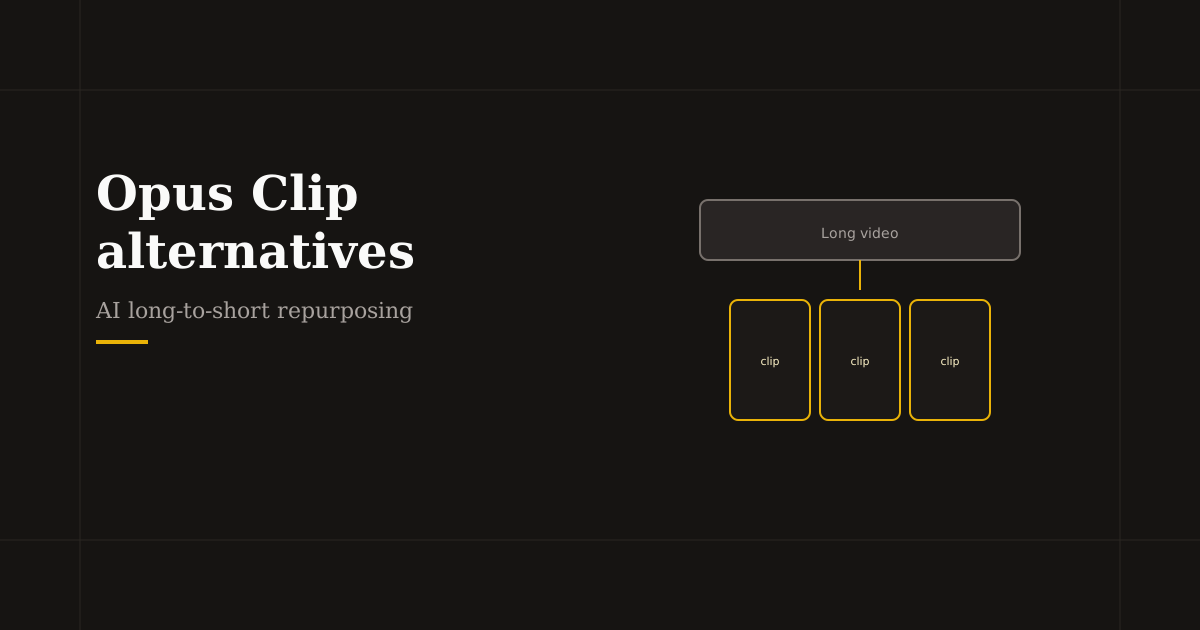
Tools that turn long videos into AI-cut shorts besides Opus

Opus Clip popularized one-click long-to-short repurposing. Competitors now offer similar transcript scoring, vertical reframe, and batch exports — with different minute limits, languages, and caption styles. After any AI clipper, you still need reliable 9:16 crop and hook trims before posting.

What Opus Clip does well

Upload long video or paste a YouTube link; AI segments highlights, scores “virality,” reframes to vertical, and adds captions. Strong for podcasters and YouTubers shipping daily shorts from one recording.

Limits appear on free tiers (processing minutes), reframing mistakes on slides, and dependency on cloud uploads — plan a human review pass on every export.

Direct Opus Clip alternatives

Vizard — long-form to shorts with templates and team workflows; popular for marketers batching LinkedIn and TikTok from webinars.

Munch and Klap — similar AI moment detection with variant caption and B-roll suggestions; compare minute pricing if you publish high volume.

Descript — less “viral score,” more transcript control; best when word-level editing matters more than auto-montage.

CapCut desktop — manual chapter cuts with AI assist inside a full NLE when you outgrow fully automatic clips.

After AI clipping: browser polish

AI reframing can crop presenters or on-screen data wrong. Pull exports into Resize Video for a final 1080×1920 crop with safe margins, then Trim the opening frame until the hook lands in under two seconds.

Add Logo for series branding. Reels Editor keeps this step local — useful when the clipper already stored your long video on its servers and you want the final polish offline.

Choosing by publishing volume

Low volume (1–2 long videos per week): one clipper free tier plus browser prep is enough. High volume: compare per-minute pricing, team seats, and whether you need API or scheduling integrations.

Do not run the same long file through three clippers — pick one AI pass, then standardize manual prep so your feed looks cohesive.

Related reading

  • Tool GuideBest AI Reel Editor Tools (2026)The best AI reel editor depends on your job: auto-clipping long video, captions, or fast private crop and trim. Compare top picks and a practical hybrid workflow for 2026.
  • WorkflowHow to Edit Reels with AI — Step-by-Step WorkflowLearn how to edit reels with AI without losing quality: repurpose long video, fix framing in the browser, add captions, and export 1080×1920 for Instagram and TikTok.
  • AlternativesBest CapCut Alternatives for Reels (2026)CapCut alternatives for 2026: Instagram Edits, Descript, VEED, and browser editors for private crop and trim. Pick by captions, templates, or local processing.
  • Editing TechniqueHook viewers in the first 2 secondsStop the scroll in under two seconds with motion, bold text, and a clear subject. A strong hook sets pace and lifts watch time on Reels, Shorts, and TikTok.

Frequently asked questions

What is the best free Opus Clip alternative?
Several clippers offer limited free minutes — Vizard, Munch, and Klap are common trials. Descript’s free tier helps if you edit by transcript. Always check current minute caps.
Can I edit Opus Clip videos without uploading again?
Download the MP4 and crop or trim in a local browser editor. That avoids a second round-trip through the clipper cloud.
Is Opus Clip better than manual editing?
Faster for first drafts from long video; manual or browser editing still wins on precise hooks and branding. Use both.
What size should Opus Clip alternatives export?
1080×1920 (9:16) for Instagram Reels, TikTok, and YouTube Shorts.

Scopri di più

Tools to apply this guide

Editor foto e video gratuiti — privati, nel browser, senza account.

  • Resize videos for InstagramResize videos online for Instagram Reels, TikTok, YouTube Shorts and other social platforms.→
  • Trim videos onlineCut long footage into short clips optimized for social media.→
  • Add logo to videoPlace your brand logo on any video or image directly in your browser.→
  • Speed up video segmentsMake specific parts of your video faster without re-encoding the entire file manually.→