Reels Editor — outils photo et vidéo gratuitsReels Editor
  • Outils
    Image
    • Flouter l'image
    • Redimensionner l'image
    • Supprimer l'arrière-plan
    • Recadrer l'image
    • Pixelliser l'image
    Vidéo
    • Éditer des Reels en ligne
    • Redimensionner la vidéo
    • Couper la vidéo
    • Filtres vidéo
    • Transitions
    • Éditeur de logo
    • Ajouter une image au Reel
    • Accélérer la vidéo
    • Compresseur MP4
    • Ajouter de l’audio
    Convertisseurs
    Vidéo en GIF
    • MP4 en GIF
    • Vidéo en GIF
    • MOV en GIF
    • WebM en GIF
    Formats d'image
    • PNG en JPG
    • JPG en PNG
    • PNG en WebP
    • WebP en PNG
    • JPG en WebP
    • WebP en JPG
    • HEIC en JPG
    • HEIC en PNG
    Tous les convertisseurs
    Voir tous les outils →
  • Guides
    Guides ultimes
    • Créer un Reel viral🔥 À la une
    • Modifier des images pour un blog
    • Monter des Reels en ligne
    • Taille Reels Instagram
    • Montage vidéo TikTok
    • YouTube Shorts
    • Branding des Reels
    Voir tous les guides →
  • Éditer des Reels en ligne
  • Blog
  • Redimensionner la vidéo
Reels EditorOutils photo et vidéo gratuits
Principal
Tous les outilsÉditer des Reels en ligne
Image
Flouter l'imageRedimensionner l'imageSupprimer l'arrière-planRecadrer l'imagePixelliser l'image
Vidéo
Éditer des Reels en ligneRedimensionner la vidéoCouper la vidéoFiltres vidéoTransitionsÉditeur de logoAjouter une image au ReelAccélérer la vidéoCompresseur MP4Ajouter de l’audio
Convertisseurs
Tous les convertisseursMP4 en GIFVidéo en GIFMOV en GIFWebM en GIFPNG en JPGJPG en PNGPNG en WebPWebP en PNGJPG en WebPWebP en JPGHEIC en JPGHEIC en PNG
Guides ultimes
Tous les guidesCréer un Reel viral🔥 À la uneModifier des images pour un blogMonter des Reels en ligneTaille Reels InstagramMontage vidéo TikTokYouTube ShortsBranding des Reels
Ressources
Blog
Reels Editor

Outils photo et vidéo gratuits dans le navigateur pour Instagram Reels, TikTok et YouTube Shorts.

Vos fichiers ne quittent jamais votre navigateur.

© 2026 Reels Editor

Outils populaires

  • Supprimer l'arrière-plan des images
  • Ajouter une image au reel
  • Flouter une image en ligne
  • Redimensionner des vidéos pour Instagram
  • Couper des vidéos en ligne
  • Ajouter un logo à la vidéo
  • Appliquer des filtres vidéo en ligne
  • Compresseur MP4 en ligne
  • Convertir MP4 en GIF en ligne
  • Convertir PNG en JPG en ligne

Ressources

  • Guides
  • Blog
  • Centre d'aide
  • Éditer des Reels en ligne
  • À propos

Mentions légales

  • Politique de confidentialité
  • Conditions générales
  • Contact
Home/Blog/How to Convert a Horizontal Video to Vertical 9:16
← Back to the blog

Table of contents

  1. Crop — do not letterbox — for short-form feeds
  2. How to reframe the subject when converting 16:9 to 9:16
  3. Convert horizontal video to vertical — browser workflow
  4. Instagram, TikTok, and Shorts after conversion
  5. Quality tips when upscaling feels necessary
Resize video to these sizes →
Format GuideAug 22, 2026

How to Convert a Horizontal Video to Vertical 9:16

Convert horizontal video to vertical 9:16 without black bars: crop 16:9 to 9:16, reposition subjects, blur-fill backgrounds, and export for Reels, TikTok, and YouTube Shorts.
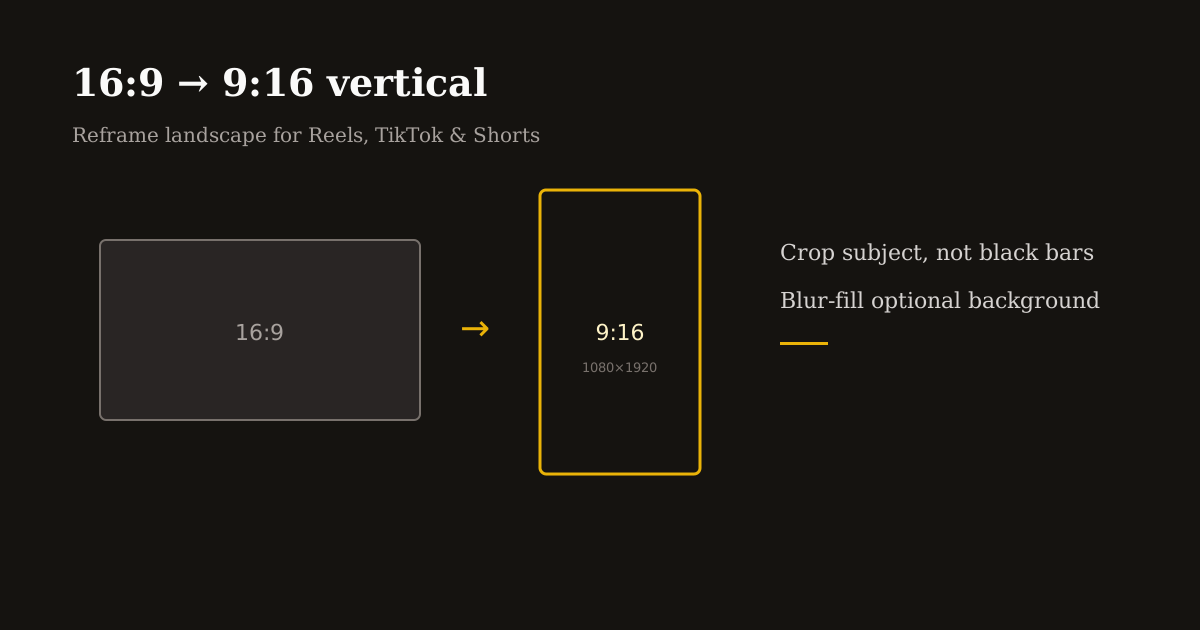
Landscape footage reframed onto a tall 9:16 canvas

Landscape 16:9 is how cameras, Zoom, and screen recorders default — but Reels, TikTok, and Shorts are 9:16 full screen. Uploading horizontal video without reframing gives you tiny subjects, black bars, or aggressive platform crops you never approved.

Converting horizontal video to vertical is a composition problem first and a technical one second. This guide shows how to reframe with intent in the browser.

Quick size reference

PlatformFormatSizeRatioNotes
Reels / TikTok / ShortsVertical master1080×19209:16Target export
Source (common)Landscape HD1920×108016:9Typical input

Crop — do not letterbox — for short-form feeds

Letterboxing 16:9 inside 9:16 preserves every pixel of width but shrinks your subject to a strip in the middle of the phone. Feeds reward full-screen faces and products, not cinema bars.

The fix is a deliberate vertical crop: choose which third of the landscape frame matters, then export 1080×1920 with that window.

If you need the entire width visible (wide demo screens), use blur-fill or a slide pan — but default to punch-in for talking heads and product shots.

How to reframe the subject when converting 16:9 to 9:16

Talking head: place eyes in the upper third of the vertical frame, not dead center. Leave chin room above bottom captions.

Product/demo: center the hero object, not the table edge. Screen recordings: zoom until UI text is legible on a phone — often 130–160% scale inside the crop.

Two-person landscape interviews: pick one speaker per clip or split into two vertical exports. Trying to keep both tiny faces hurts retention on every platform.

Convert horizontal video to vertical — browser workflow

Open Resize Video and upload your MP4. Set output to 1080×1920 (9:16) or choose the Reels preset if available.

Drag the crop window until the subject fills the frame. Use zoom/scale if the tool allows — landscape sources often need a tighter pick-up than the default center crop.

Optional blur-fill: when you must hint at context outside the crop, a blurred background extension looks cleaner than black bars for lifestyle B-roll.

Preview the first and last second — hooks and CTAs live at extremes. Export MP4 once, then trim dead air in Cuts if pacing still feels slow.

Instagram, TikTok, and Shorts after conversion

Instagram Reels: upload the 9:16 master; add captions in-app if you did not burn them. Keep logos upper-corner per safe-zone guides.

TikTok: right-edge UI is crowded — bias subject slightly left of center. Test one export before batching a series.

YouTube Shorts: titles still matter on the shelf; the vertical frame is the same 1080×1920 language — reuse the master when cross-posting.

Cross-post the same vertical file when messaging aligns. Re-cropping per platform only when UI safe zones differ materially.

Quality tips when upscaling feels necessary

Start from the highest source resolution available. Cropping 1080p landscape to 9:16 keeps more detail than cropping 720p.

Avoid exporting vertical at 540×960 for final brand campaigns — fine for drafts, soft for product detail.

Pair with Compress MP4 after reframing if uploads fail — not before — so you compress the final pixels viewers will see.

Related reading

  • WorkflowHow to Resize a Video for Instagram ReelsResize a video for Instagram Reels in the browser: pick 1080×1920 (9:16), reframe any source, skip black bars, then export MP4 before you upload.
  • GuideBest crop sizes for Reels and ShortsUse 9:16 for vertical Reels and Shorts, 4:5 for feed previews, and keep safe margins for captions and UI so key subjects never get covered.
  • GuideInstagram Reel DimensionsInstagram Reel dimensions are 1080×1920 (9:16). Compare Reels vs Stories vs 4:5 feed crops, caption safe zones, and export settings that stay sharp.
  • GuideHow to Compress a Video for Instagram Reels Without Losing QualityCompress video for Instagram Reels without mushy details: target bitrates, balanced presets, 1080×1920 exports, and when to shrink file size before upload.

Frequently asked questions

How do I turn a horizontal video vertical for Reels?
Crop 16:9 to 9:16 at 1080×1920, reposition the subject in Resize Video, and export MP4. Avoid letterboxing for feed posts.
What is 16:9 to 9:16 in pixels?
A common vertical master is 1080×1920 (9:16). Landscape 1920×1080 (16:9) reframed vertically uses a tall window from that source.
Will TikTok crop my horizontal video automatically?
Platforms may center-crop if you upload landscape. Manual vertical crop gives you control over faces, text, and product framing.
Can I convert horizontal to vertical online free?
Yes. Reels Editor Resize Video reframes and exports in the browser without an account.

Explorer plus

Tools to apply this guide

Éditeurs photo et vidéo gratuits — privés, dans le navigateur, sans compte.

  • Resize videos for InstagramResize videos online for Instagram Reels, TikTok, YouTube Shorts and other social platforms.→
  • Trim videos onlineCut long footage into short clips optimized for social media.→
  • Compress MP4 and video onlineShrink large clips with a free MP4 compressor that also works as a video compressor and lightweight video converter.→