Reels Editor — outils photo et vidéo gratuitsReels Editor
  • Outils
    Image
    • Flouter l'image
    • Redimensionner l'image
    • Supprimer l'arrière-plan
    • Recadrer l'image
    • Pixelliser l'image
    Vidéo
    • Éditer des Reels en ligne
    • Redimensionner la vidéo
    • Couper la vidéo
    • Filtres vidéo
    • Transitions
    • Éditeur de logo
    • Ajouter une image au Reel
    • Accélérer la vidéo
    • Compresseur MP4
    • Ajouter de l’audio
    Convertisseurs
    Vidéo en GIF
    • MP4 en GIF
    • Vidéo en GIF
    • MOV en GIF
    • WebM en GIF
    Formats d'image
    • PNG en JPG
    • JPG en PNG
    • PNG en WebP
    • WebP en PNG
    • JPG en WebP
    • WebP en JPG
    • HEIC en JPG
    • HEIC en PNG
    Tous les convertisseurs
    Voir tous les outils →
  • Guides
    Guides ultimes
    • Créer un Reel viral🔥 À la une
    • Modifier des images pour un blog
    • Monter des Reels en ligne
    • Taille Reels Instagram
    • Montage vidéo TikTok
    • YouTube Shorts
    • Branding des Reels
    Voir tous les guides →
  • Éditer des Reels en ligne
  • Blog
  • Redimensionner la vidéo
Reels EditorOutils photo et vidéo gratuits
Principal
Tous les outilsÉditer des Reels en ligne
Image
Flouter l'imageRedimensionner l'imageSupprimer l'arrière-planRecadrer l'imagePixelliser l'image
Vidéo
Éditer des Reels en ligneRedimensionner la vidéoCouper la vidéoFiltres vidéoTransitionsÉditeur de logoAjouter une image au ReelAccélérer la vidéoCompresseur MP4Ajouter de l’audio
Convertisseurs
Tous les convertisseursMP4 en GIFVidéo en GIFMOV en GIFWebM en GIFPNG en JPGJPG en PNGPNG en WebPWebP en PNGJPG en WebPWebP en JPGHEIC en JPGHEIC en PNG
Guides ultimes
Tous les guidesCréer un Reel viral🔥 À la uneModifier des images pour un blogMonter des Reels en ligneTaille Reels InstagramMontage vidéo TikTokYouTube ShortsBranding des Reels
Ressources
Blog
Reels Editor

Outils photo et vidéo gratuits dans le navigateur pour Instagram Reels, TikTok et YouTube Shorts.

Vos fichiers ne quittent jamais votre navigateur.

© 2026 Reels Editor

Outils populaires

  • Supprimer l'arrière-plan des images
  • Ajouter une image au reel
  • Flouter une image en ligne
  • Redimensionner des vidéos pour Instagram
  • Couper des vidéos en ligne
  • Ajouter un logo à la vidéo
  • Appliquer des filtres vidéo en ligne
  • Compresseur MP4 en ligne
  • Convertir MP4 en GIF en ligne
  • Convertir PNG en JPG en ligne

Ressources

  • Guides
  • Blog
  • Centre d'aide
  • Éditer des Reels en ligne
  • À propos

Mentions légales

  • Politique de confidentialité
  • Conditions générales
  • Contact
Home/Blog/How to Compress a Video for Instagram Reels Without Losing Quality
← Back to the blog

Table of contents

  1. Why pre-compress Reels if Instagram compresses again?
  2. Settings that actually matter for Reels
  3. Instagram video compressor workflow in the browser
  4. Quality checklist before you publish
Resize video to these sizes →
Format GuideAug 22, 2026

How to Compress a Video for Instagram Reels Without Losing Quality

Compress video for Instagram Reels without mushy details: target bitrates, balanced presets, 1080×1920 exports, and when to shrink file size before upload.
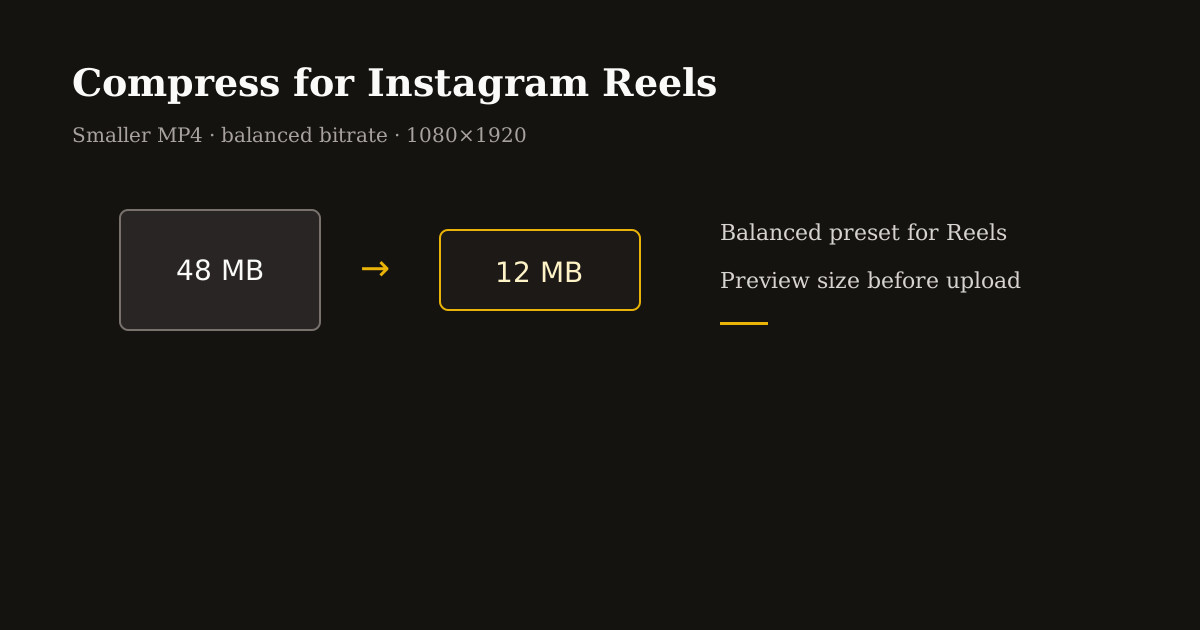
Leaner MP4 sized to clear Instagram upload limits

Instagram Reels will re-compress whatever you upload — but starting with a reasonable file size and bitrate prevents the “double soup” look: blocky skies, muddy skin tones, and smeared text you cannot fix after posting.

Think of compression as choosing how much detail you keep before the platform touches the file — not how small you can make it for email.

Quick size reference

PlatformFormatSizeRatioNotes
Instagram ReelsVertical master1080×19209:16Preferred upload
Instagram ReelsAcceptable draft540×9609:16Faster edit, softer detail

Why pre-compress Reels if Instagram compresses again?

Platforms apply their own encoders, but huge source files (4K screen recordings, 200 Mbps exports) force aggressive downscaling and bitrate slashing. A balanced 1080×1920 master near 8–20 MB gives Instagram a sane starting point.

Pre-compression also saves upload time on mobile data and reduces failure mid-upload on long clips.

The goal is not the smallest possible file — it is the smallest file that still looks sharp on a phone at arm’s length.

Settings that actually matter for Reels

Resolution: export 1080×1920 (9:16) when your source supports it. Compressing a landscape file without cropping wastes pixels on letterboxing.

Bitrate: for talking-head and UI content, roughly 2–4 Mbps video at 30 fps is a practical balanced zone before Instagram’s pass. Heavy motion (fitness, gaming) needs more headroom; static slides need less.

Frame rate: 30 fps is the social default. Dropping to 24 fps saves size but can stutter on fast hand movement — test one clip before batching.

Audio: 96–128 kbps AAC is enough for voice and bed music on Reels. Ultra-high audio bitrates rarely improve perceived quality on phone speakers.

Instagram video compressor workflow in the browser

Open MP4 Compressor, upload your edited reel, and choose Balanced for most organic posts — it targets social-friendly bitrates without the harsh artifacts of “max compress.”

Check estimated output size before export. If the preview shows heavy banding in skies or gradients, step up to High quality or reduce motion blur filters before compressing again.

Use resolution caps (720p max) only when you must hit a hard size limit — client WhatsApp approvals, email gates, or slow hotel Wi-Fi — not for flagship launches.

Export MP4, watch once on your phone at 100% brightness, then upload to Reels. Add captions and music in Instagram after upload if that is your publishing flow.

Quality checklist before you publish

Text and logos: pause on a frame with small type. If edges look fuzzy pre-upload, Instagram will not sharpen them.

Skin and skies: banding here means bitrate too low — bump quality or shorten clip length instead of crushing size further.

Hook frame: compression hits high-motion openings hardest. Trim dead air before compress so bits spend on the first two seconds viewers see.

Avoid compressing the same file twice through different online tools. One deliberate pass beats two accidental ones.

Related reading

  • WorkflowHow to Resize a Video for Instagram ReelsResize a video for Instagram Reels in the browser: pick 1080×1920 (9:16), reframe any source, skip black bars, then export MP4 before you upload.
  • GuideInstagram Reel DimensionsInstagram Reel dimensions are 1080×1920 (9:16). Compare Reels vs Stories vs 4:5 feed crops, caption safe zones, and export settings that stay sharp.
  • GuideBest Reel Size Guide (2026)The best reel size in 2026 is 1080×1920 (9:16). Use this guide for Instagram, TikTok, and YouTube Shorts — plus safe margins and export tips.
  • GuideHow to Convert a Horizontal Video to Vertical 9:16Convert horizontal video to vertical 9:16 without black bars: crop 16:9 to 9:16, reposition subjects, blur-fill backgrounds, and export for Reels, TikTok, and YouTube Shorts.

Frequently asked questions

What is the best file size for Instagram Reels?
There is no magic number — aim for a sharp 1080×1920 MP4, often roughly 8–25 MB for 30–60 seconds of talking-head content after balanced compression.
Will compressing video reduce quality on Reels?
Some loss is inevitable, but balanced bitrates minimize visible damage. Over-compressing before upload makes Instagram’s second pass look worse.
Should I compress 4K video before Reels?
Crop to 9:16 and downscale to 1080×1920 first. Uploading 4K vertical forces the platform to throw away data aggressively.
Can I compress MP4 in the browser?
Yes. Reels Editor MP4 Compressor runs locally with quality presets and size estimates before download.

Explorer plus

Tools to apply this guide

Éditeurs photo et vidéo gratuits — privés, dans le navigateur, sans compte.

  • Compress MP4 and video onlineShrink large clips with a free MP4 compressor that also works as a video compressor and lightweight video converter.→
  • Resize videos for InstagramResize videos online for Instagram Reels, TikTok, YouTube Shorts and other social platforms.→
  • Export video to MP4Every Reels Editor tool exports MP4 files optimized for Instagram Reels, TikTok, and YouTube Shorts.→