Reels Editor — herramientas gratis de foto y vídeoReels Editor
  • Herramientas
    Imagen
    • Desenfocar imagen
    • Redimensionar imagen
    • Quitar fondo
    • Recortar imagen
    • Pixelar imagen
    Vídeo
    • Editar Reels online
    • Redimensionar vídeo
    • Recortar vídeo
    • Filtros de vídeo
    • Transiciones
    • Editor de logo
    • Añadir imagen al Reel
    • Acelerar vídeo
    • Compresor MP4
    • Añadir audio
    Convertidores
    Vídeo a GIF
    • MP4 a GIF
    • Vídeo a GIF
    • MOV a GIF
    • WebM a GIF
    Formatos de imagen
    • PNG a JPG
    • JPG a PNG
    • PNG a WebP
    • WebP a PNG
    • JPG a WebP
    • WebP a JPG
    • HEIC a JPG
    • HEIC a PNG
    Todos los convertidores
    Ver todas las herramientas →
  • Editar Reels online
  • Quitar fondo
  • Añadir imagen al Reel
  • Desenfocar imagen
  • Redimensionar vídeo
Reels EditorHerramientas gratis de foto y vídeo
Principal
Todas las herramientasEditar Reels online
Imagen
Desenfocar imagenRedimensionar imagenQuitar fondoRecortar imagenPixelar imagen
Vídeo
Editar Reels onlineRedimensionar vídeoRecortar vídeoFiltros de vídeoTransicionesEditor de logoAñadir imagen al ReelAcelerar vídeoCompresor MP4Añadir audio
Convertidores
Todos los convertidoresMP4 a GIFVídeo a GIFMOV a GIFWebM a GIFPNG a JPGJPG a PNGPNG a WebPWebP a PNGJPG a WebPWebP a JPGHEIC a JPGHEIC a PNG
Recursos
GuíasBlog
Reels Editor

Herramientas gratis de foto y vídeo en el navegador para Instagram Reels, TikTok y YouTube Shorts.

© 2026 Reels Editor

Herramientas populares

  • Quitar fondo de imágenes
  • Añadir imagen al reel
  • Desenfocar imagen online
  • Redimensionar vídeos para Instagram
  • Recortar vídeos online
  • Añadir logo al vídeo
  • Aplicar filtros de vídeo online
  • Compresor MP4 online
  • Convertir MP4 a GIF online
  • Convertir PNG a JPG online

Recursos

  • Guías
  • Blog
  • Centro de ayuda
  • Editar Reels online
  • Acerca de

Legal

  • Política de privacidad
  • Términos y condiciones
  • Contacto
Home/Blog/How to Edit Reels with AI — Step-by-Step Workflow
WorkflowJul 17, 2026

New: Practical AI reel workflow — clip, crop, caption, publish.

How to Edit Reels with AI — Step-by-Step Workflow

Learn how to edit reels with AI without losing quality: repurpose long video, fix framing in the browser, add captions, and export 1080×1920 for Instagram and TikTok.
How to Edit Reels with AI — Step-by-Step Workflow

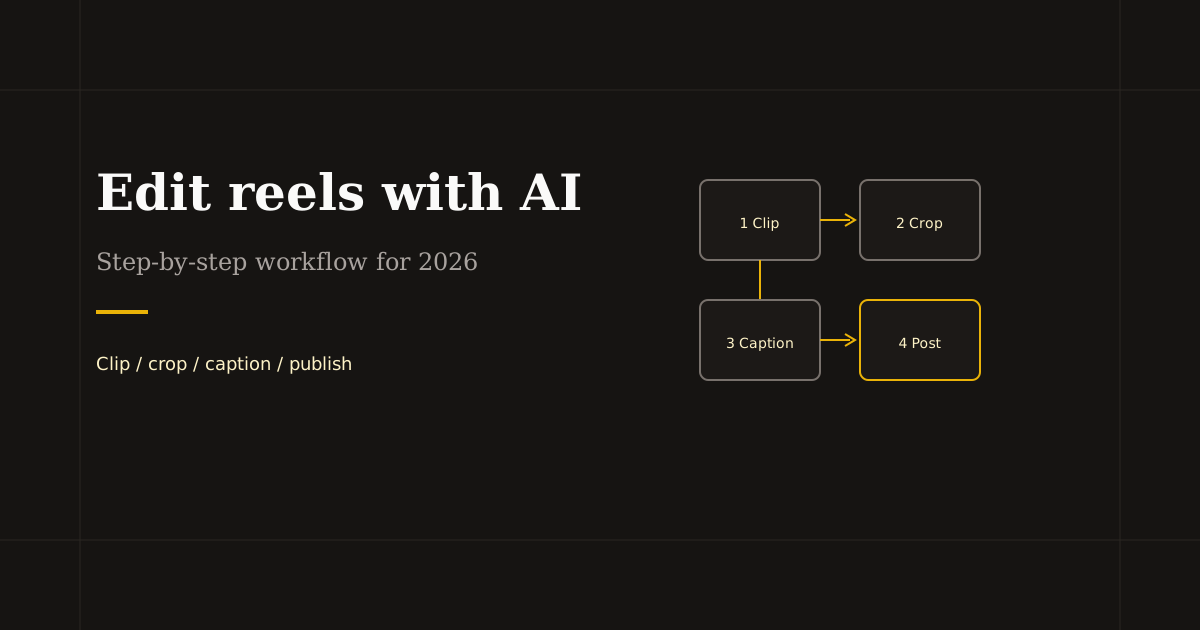
Editing reels with AI is not one button — it is a chain. AI finds clips or writes captions; you still own framing, brand, and the first two seconds. This workflow keeps each step in the right tool so you ship faster than fighting a single app for everything.

Table of contents

  1. Step 1 — Start with usable source footage
  2. Step 2 — Let AI draft clips (optional)
  3. Step 3 — Crop, trim, and brand in the browser
  4. Step 4 — Captions: burn-in or platform
  5. Step 5 — Publish and iterate

Step 1 — Start with usable source footage

AI clip tools need clear audio and stable exposure. Record talking-head or screen content at the highest resolution you have; repurposing AI will crop to vertical later.

If you already have a short clip, skip repurposing AI and jump to Step 3 — do not over-automate a fifteen-second video.

Step 2 — Let AI draft clips (optional)

Upload long video to a repurposing tool (Opus Clip, Vizard, etc.). Review suggestions — keep clips with a complete thought in the first second, not just a high “viral” label.

Export candidates as vertical MP4 or download and reframe manually if the AI crop misses faces or slides.

Step 3 — Crop, trim, and brand in the browser

Open each keeper in Reels Editor: Resize to 1080×1920 with safe margins, Trim dead air and weak openings, Add Logo if needed, Add Image for product overlays with timeline timing.

This step is where AI workflows win or lose — a sharp hook and correct 9:16 beat a dozen auto-generated clips with chin-cropped speakers.

Step 4 — Captions: burn-in or platform

Burn captions in CapCut, Descript, or VEED when style matters and you want mute-proof text. Use Instagram or TikTok auto-captions after upload when you want native styling and less export time.

If you use platform captions, leave the lower third clearer during browser crop — do not place logos where captions will sit.

Step 5 — Publish and iterate

Upload the final MP4, add trending audio in-app if required, write hook text in the caption, and track hold rate. Feed winners back into your template: same crop margins, same caption path, same trim rules.

AI should shrink iteration time, not remove taste. Change one variable per batch — hook text, opening frame, or caption style — so you learn what moved metrics.

Related reading

  • Best AI Reel Editor Tools (2026)Tool Guide
  • Best Opus Clip Alternatives for AI Short ClipsAlternatives
  • Audio timing tips for higher retentionAudio
  • Hook viewers in the first 2 secondsEditing Technique

Explora más

Tools to apply this guide

Editores gratuitos de foto y vídeo — privados, en el navegador y sin cuenta.

  • Resize videos for InstagramResize, crop, and reframe video or still images for Instagram Reels, TikTok, and YouTube Shorts.→
  • Trim videos onlineCut long footage into short clips optimized for social media.→
  • Add image on reelNeed to add image on reel after Instagram moved advanced overlays into a separate flow?→
  • Export video to MP4Every Reels Editor tool exports MP4 files optimized for Instagram Reels, TikTok, and YouTube Shorts.→

Frequently asked questions

What is the easiest way to edit reels with AI?
Use repurposing AI for long video, then crop and trim in a browser editor, then add captions in CapCut or on-platform. Three steps, three tools, faster than one overloaded app.
Do I need AI to edit reels?
No. Short clips you record vertically only need trim, optional logo, and export. AI helps most when repurposing podcasts or webinars.
Where does Reels Editor fit in an AI workflow?
After AI picks the clip — for private 9:16 crop, trim, logo, and MP4 export before upload to Instagram or TikTok.
What reel size should I export after AI editing?
1080×1920 (9:16) for Instagram Reels, TikTok, and YouTube Shorts.

Resize video to these sizes →

← Back to the blog