
TikTok Aspect Ratio Explained
TikTok’s native aspect ratio is 9:16 (1080×1920). Learn what happens with 16:9 uploads, how UI overlays crop attention, and how to reframe landscape footage.
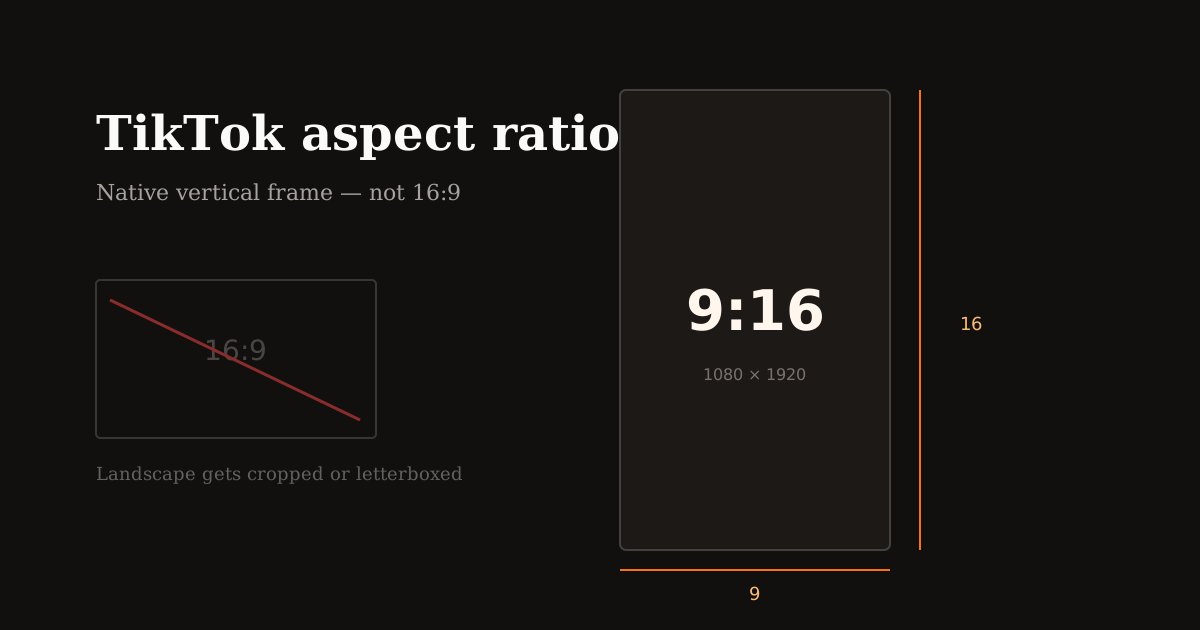
TikTok is built for vertical video. Upload anything else and the app will letterbox, center-crop, or squeeze composition in ways you do not control. Lock 9:16 before you publish.
Quick size reference
| Platform | Format | Size | Ratio | Notes |
|---|---|---|---|---|
| TikTok | Recommended video | 1080×1920 | 9:16 | Native full-screen |
| TikTok | Minimum practical | 540×960 | 9:16 | Same ratio, lighter file |
What aspect ratio does TikTok use?
TikTok’s native aspect ratio is 9:16 — nine units wide, sixteen tall. At Full HD that is 1080×1920. That frame fills the phone screen edge to edge during For You playback.
Square (1:1) and landscape (16:9) uploads still play, but they waste vertical space with bars or aggressive auto-crops. Retention usually drops when the subject becomes tiny or gets clipped mid-face.
If you also post to Reels and Shorts, keep the same 9:16 master. TikTok does not need a unique pixel size — it needs intentional vertical framing and safe margins for its UI.
TikTok UI safe zones that change framing
Engagement buttons sit along the right edge. Captions, sounds, and username treatments compete along the bottom. Status and navigation chrome can intrude at the top on some devices.
Keep faces and products in the center ~70–80% of the frame. Place branded lower-thirds higher than you would for YouTube landscape. Avoid critical text in the lower fifth and the far-right strip.
When you crop in Resize Video, imagine a phone with opaque buttons overlaid. If a logo or CTA would sit under a like button, drag the frame until it clears.
Converting landscape footage to TikTok 9:16
Do not stretch. Stretching 16:9 into 9:16 distorts faces and looks unprofessional. Crop the region that matters — usually the speaker, product, or action — and discard the empty sides.
For interviews or screen recordings that must keep more horizontal context, fill the vertical empty space with a blurred background of the same clip instead of black bars. Reels Editor supports blurred or custom backgrounds while you keep a centered foreground.
After reframing, re-check pacing. A landscape cut that felt fine can feel slow once the subject fills the screen. Trim openings and dead air after you lock the TikTok crop.
Export tips for sharper TikTok uploads
Export H.264 MP4 when possible, keep audio clean, and avoid stacking multiple heavy compressions before upload. TikTok will recompress again — start from a clean 1080×1920 master.
Match cuts to beats if you use trending audio. Vertical framing makes every cut feel larger; messy transitions are more obvious than on landscape YouTube.
Batch creators should save the TikTok preset and reuse it. Same width, height, and bottom padding every time builds a recognizable feed.
Frequently asked questions
- What is the TikTok aspect ratio?
- 9:16 vertical. The recommended resolution is 1080×1920.
- Can I upload 16:9 videos to TikTok?
- You can, but TikTok will letterbox or auto-crop. Reframe to 9:16 yourself for better composition and watch time.
- Does TikTok prefer a different size than Instagram Reels?
- No. Both prefer 9:16 at 1080×1920. Adjust safe margins for TikTok’s right-side buttons, not the pixel size.