Reels Editor — kostenlose Foto- und VideotoolsReels Editor
  • Tools
    Bild
    • Bild unscharf machen
    • Bild skalieren
    • Hintergrund entfernen
    • Bild zuschneiden
    • Bild verpixeln
    Video
    • Reels online bearbeiten
    • Video skalieren
    • Video schneiden
    • Video-Filter
    • Übergänge
    • Logo-Editor
    • Bild zum Reel hinzufügen
    • Video beschleunigen
    • MP4-Kompressor
    • Audio hinzufügen
    Konverter
    Video zu GIF
    • MP4 zu GIF
    • Video zu GIF
    • MOV zu GIF
    • WebM zu GIF
    Bildformate
    • PNG zu JPG
    • JPG zu PNG
    • PNG zu WebP
    • WebP zu PNG
    • JPG zu WebP
    • WebP zu JPG
    • HEIC zu JPG
    • HEIC zu PNG
    Alle Konverter
    Alle Tools anzeigen →
  • Anleitungen
    Ultimate Guides
    • Virales Reel erstellen🔥 Empfohlen
    • Bilder für einen Blog bearbeiten
    • Reels online bearbeiten
    • Instagram Reels Größe
    • TikTok Videoschnitt
    • YouTube Shorts
    • Reels branding
    Alle Guides anzeigen →
  • Reels online bearbeiten
  • Blog
  • Video skalieren
Reels EditorKostenlose Foto- & Videotools
Haupt
Alle ToolsReels online bearbeiten
Bild
Bild unscharf machenBild skalierenHintergrund entfernenBild zuschneidenBild verpixeln
Video
Reels online bearbeitenVideo skalierenVideo schneidenVideo-FilterÜbergängeLogo-EditorBild zum Reel hinzufügenVideo beschleunigenMP4-KompressorAudio hinzufügen
Konverter
Alle KonverterMP4 zu GIFVideo zu GIFMOV zu GIFWebM zu GIFPNG zu JPGJPG zu PNGPNG zu WebPWebP zu PNGJPG zu WebPWebP zu JPGHEIC zu JPGHEIC zu PNG
Ultimate Guides
Alle GuidesVirales Reel erstellen🔥 EmpfohlenBilder für einen Blog bearbeitenReels online bearbeitenInstagram Reels GrößeTikTok VideoschnittYouTube ShortsReels branding
Ressourcen
Blog
Reels Editor

Kostenlose Foto- und Videotools im Browser für Instagram Reels, TikTok und YouTube Shorts.

Deine Dateien verlassen nie deinen Browser.

© 2026 Reels Editor

Beliebte Tools

  • Hintergrund von Bildern entfernen
  • Bild zum Reel hinzufügen
  • Bild online unscharf machen
  • Videos für Instagram skalieren
  • Videos online schneiden
  • Logo zum Video hinzufügen
  • Video-Filter online anwenden
  • MP4-Kompressor online
  • MP4 online zu GIF konvertieren
  • PNG online zu JPG konvertieren

Ressourcen

  • Anleitungen
  • Blog
  • Hilfe-Center
  • Reels online bearbeiten
  • Über uns

Rechtliches

  • Datenschutz
  • AGB
  • Kontakt
Home/Blog/How to Add a Logo to a Video Without Losing Quality
← Back to the blog

Table of contents

  1. Start with the right logo file
  2. Placement and safe zones for Reels, TikTok, and Shorts
  3. Add logo to video online — single-export workflow
  4. Agency and batch tips
  5. Common quality mistakes to avoid
Resize video to these sizes →
BrandingAug 22, 2026

How to Add a Logo to a Video Without Losing Quality

Add logo to video and watermark video online without blurry edges: transparent PNGs, safe zones, scale rules, and a single high-quality MP4 export for creators and agencies.
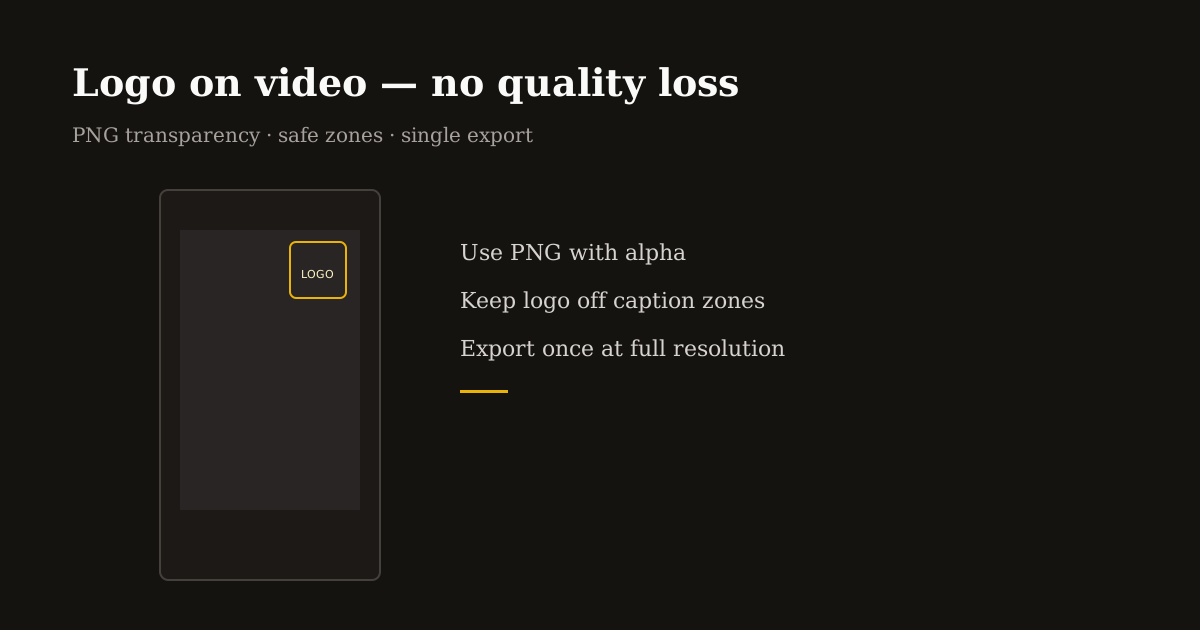
Brand watermark on a 9:16 clip without extra compression

A logo burned in too large, too low, or exported through three apps looks amateur — and re-encoding the same reel repeatedly makes it worse. Agencies and creators need the same thing: crisp brand marks that survive mobile compression.

This is a quality-first workflow for watermarking vertical video in the browser: one transparent PNG, one deliberate placement, one export at full resolution.

Start with the right logo file

Use PNG with transparency. White logos on dark video and dark logos on bright scenes both fail when you use JPG with a visible white box.

Export the master logo at 2× the pixel size you expect on screen — e.g., if the mark displays around 120 px wide on a 1080-wide frame, source art near 240 px keeps edges sharp after scaling down.

Avoid thin hairline strokes below 2 px at final display size. Reels compression eats fine lines; slightly bolder wordmarks read clearer on phones.

Placement and safe zones for Reels, TikTok, and Shorts

Default to upper-left or upper-right corners inset from edges — roughly 5–8% padding from top and side. Bottom corners fight caption bars; lower-right is the noisiest on TikTok because of engagement buttons.

Scale logos to 8–15% of frame width for episodic series branding — visible but not a billboard. Campaign launches can go larger for a week, then return to a subtle bug for feed consistency.

Preview on a phone, not only on a 27-inch monitor. If you cannot read the logo at arm’s length, it is too small; if it covers the speaker’s eyes, it is too big.

Add logo to video online — single-export workflow

Open Logo Editor, upload your vertical MP4 (crop to 9:16 first if the source is landscape), then upload your PNG logo.

Drag to position, set scale percentage, and wait for the preview to finish updating. Avoid exporting while the preview is still processing — you want the frame you saw.

Export MP4 once at full canvas resolution. That single encode preserves detail better than adding a logo in App A, compressing in App B, and uploading to Instagram which compresses again.

For still thumbnails or cover frames, apply the same PNG in Logo Editor on an image export path or reuse identical coordinates across episodes so the grid looks intentional.

Agency and batch tips

Lock placement and scale across a client series — same corner, same size every episode. Consistency reads as professional even when content topics change.

Deliver two masters when needed: a clean no-logo file for paid ads that supply their own end cards, and a branded file for organic social.

Document safe zones in the client brief (1080×1920, logo upper-right at 12% width) so freelancers do not invent new positions per clip.

Pair with Compress MP4 only after branding if file size matters — not before — so the logo is encoded once with the final bitrate you chose.

Common quality mistakes to avoid

Re-scaling video smaller before adding the logo, then upscaling on upload — always brand at the delivery resolution.

Semi-transparent logos below 70% opacity on busy backgrounds — they shimmer after compression. Prefer solid marks or a subtle solid pill behind text.

Animated GIF logos on every frame — use static PNG bugs for most reels; motion logos belong in intros under three seconds, not full-duration watermarks.

Related reading

  • WorkflowHow to Remove Background from a Video OnlineRemove background from video online without guessing: green screen, PNG cutouts, sticker overlays, and when AI photo cutouts beat full-frame video matting for Reels and Shorts.
  • GuideHow to Compress a Video for Instagram Reels Without Losing QualityCompress video for Instagram Reels without mushy details: target bitrates, balanced presets, 1080×1920 exports, and when to shrink file size before upload.
  • GuideBest crop sizes for Reels and ShortsUse 9:16 for vertical Reels and Shorts, 4:5 for feed previews, and keep safe margins for captions and UI so key subjects never get covered.
  • WorkflowHow to Resize a Video for Instagram ReelsResize a video for Instagram Reels in the browser: pick 1080×1920 (9:16), reframe any source, skip black bars, then export MP4 before you upload.

Frequently asked questions

Does adding a logo reduce video quality?
One export at full resolution with a PNG overlay preserves quality. Multiple re-encodes through different apps cause the blur people blame on the logo.
What is the best logo format for video watermarks?
PNG with transparency. SVG is great for source art — export to PNG at 2× display size before overlaying on MP4.
Where should I put a watermark on a Reel?
Upper-left or upper-right with padding, away from bottom captions and TikTok’s right-side buttons.
Can I watermark video in the browser privately?
Yes. Reels Editor Logo Editor processes locally without requiring an account.

Mehr entdecken

Tools to apply this guide

Kostenlose Foto- und Videoeditoren — privat, browserbasiert, ohne Konto.

  • Add logo to videoPlace your brand logo on any video or image directly in your browser.→
  • Resize videos for InstagramResize videos online for Instagram Reels, TikTok, YouTube Shorts and other social platforms.→
  • Compress MP4 and video onlineShrink large clips with a free MP4 compressor that also works as a video compressor and lightweight video converter.→